Someone knows your passcode. Now what?
Written for anyone whose passcode has been seen, shared or guessed
Short answer
On an iPhone the passcode opens the Hidden and Recently Deleted albums, and locked apps too unless Stolen Device Protection applies. That protection asks for Face ID or Touch ID for some actions, but by default only away from familiar locations, and it doesn’t cover everything. Change the passcode, turn Stolen Device Protection on, and keep private photos behind a code that isn’t your passcode.
On this page
Passcodes get out in ordinary ways. Someone watches you type it on a train. A partner or a child has known it for years. You told it to a repair shop. However it happened, a person who has your phone and your passcode can do most of what you can, and the passcode is what most of the phone’s other locks fall back on.
What your passcode opens on an iPhone
The Hidden and Recently Deleted albums. Apple’s iPhone guide says both “are locked by default. You can unlock these collections using Face ID, Touch ID, or your passcode.”
Locked apps. “Locking an app requires Face ID, Touch ID, or your passcode to open it.” Without Stolen Device Protection, the passcode is enough.
The list of hidden apps. Apple says Settings > Apps > Hidden Apps requires authentication using Face ID, Touch ID or a passcode. Hiding an app hides its icon, not its name from someone who knows the code.
Critical account and device changes. Apple built Stolen Device Protection because of exactly this case: its requirements “help prevent someone who has stolen your iPhone and knows your passcode from making critical changes to your account or device.”
On Android, the same pattern holds for Google Photos. Google says “People who have access to the device screen lock can unlock Locked Folder,” and you can’t give it a different password. Factory Reset Protection has the same dependency: after a reset without your permission, Google says only someone with your Google Account or screen lock could use the phone.
What Stolen Device Protection does
Stolen Device Protection is Apple’s answer to a known passcode. It needs iOS 17.3 or later, and Apple says it “must be turned on before the device is lost or stolen.”
When it is on and your iPhone is not in a familiar location, you must use Face ID or Touch ID, with no passcode fallback, for a list of actions. Apple’s list includes using saved passwords and passkeys, using saved payment methods in Safari, turning off Lost Mode, opening a locked app, and Erase All Content and Settings.
Some changes go further. Apple says actions “such as changing your Apple Account password also require you to wait an hour and then perform an additional Face ID or Touch ID authentication.”
Where Stolen Device Protection stops
The protection is real, but its edges matter if the person who knows your passcode is not a stranger. Away from familiar locations, opening a locked app, using saved passwords and passkeys, and Erase All Content and Settings need Face ID or Touch ID. Changing your Apple Account password adds a one-hour wait and a second Face ID or Touch ID check.
The Hidden and Recently Deleted albums are not on Apple’s list, so assume the passcode opens them wherever the phone is. Four more gaps:
- Familiar locations are exempt by default. Apple says that at a familiar location “these additional steps are not required, and you can use your iPhone passcode like usual.” Home and work are where people who know your passcode usually are. Apple lets you choose Always under Require Security Delay, so the delay applies everywhere.
- Apple Pay still takes the passcode. “You can still use your iPhone passcode for purchases with Apple Pay.”
- Unlocked apps aren’t covered. Apple says that locking an app while Stolen Device Protection is on extends its protection to that app. An app you haven’t locked gets nothing extra.
- Photos is unclear. Apple’s list names locked apps, not the Hidden album. Apple’s list of built-in apps that can’t be locked includes Camera and Settings but doesn’t mention Photos either way. Check on your own phone whether Photos offers a lock.
What to do now
- Change your passcode, on the phone itself, as soon as you can. A longer code has far more possible combinations; the unlock strength calculator compares PINs of different lengths.
- Turn on Stolen Device Protection if your iPhone runs iOS 17.3 or later. Apple’s support article shows where the setting is. If the person who knows your passcode lives or works with you, consider choosing Always under Require Security Delay.
- Lock the apps that hold private things, such as messaging, email and notes. With Stolen Device Protection on, Apple says a locked app “can be opened only with Face ID or Touch ID when your iPhone is away from familiar locations.”
- Review the devices signed in to your Apple Account and remove any you don’t recognize. On Android, do the same for your Google Account.
- On Android, change the screen lock, since Locked Folder uses it. If you use private space (Android 15 and later), Google lets you give it its own lock by choosing Choose new lock instead of Use device screen lock.
What a separate-key vault adds, and what it cannot do
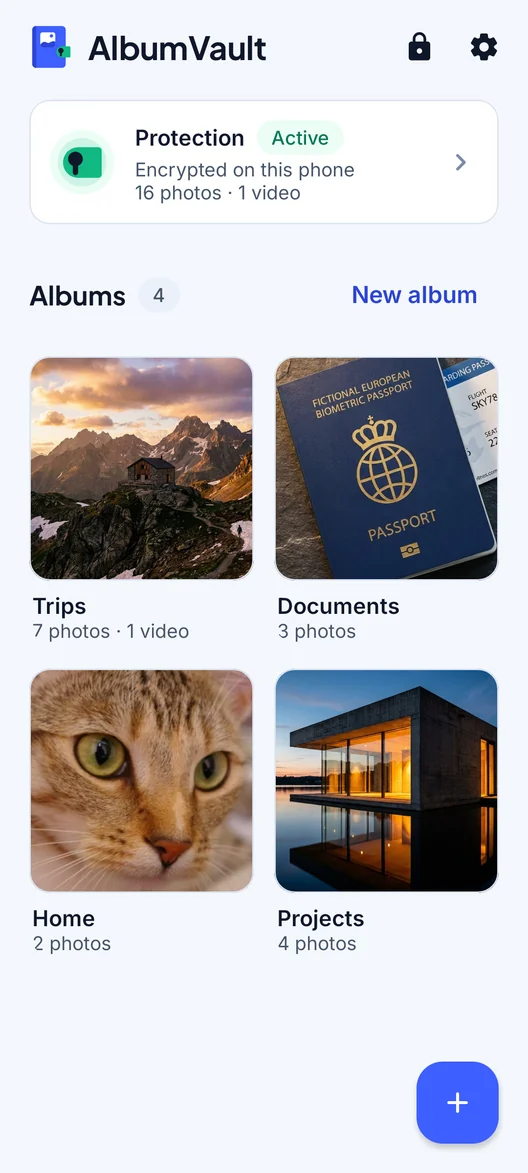
Most built-in locks above come back to the passcode, or to your face or fingerprint. A vault app with its own code, separate from the phone passcode, breaks that chain for the photos inside it. Knowing the passcode does not open the vault, and a good vault app makes repeated guessing slow.
What it cannot do:
- Hide that it exists. The app shows on the phone. Even hidden apps’ names may appear in Settings, Screen Time, Battery and App Store purchase history.
- Stop someone deleting it. A person holding your unlocked phone may be able to remove the app, and the vault with it. Keep a backup that does not depend on the phone.
- Protect an open vault. If it is open when someone picks up the phone, they see what you see.
- Solve a safety problem. If someone close to you is pressuring you for access, settings only go so far. Apple’s Personal Safety guide covers related settings, and local support services can help with the rest.
Checklist
- Change your passcode now, to a longer one.
- Turn on Stolen Device Protection, and consider Always under Require Security Delay.
- Lock messaging, email, notes and any other private apps.
- Remove signed-in devices you don’t recognize from your Apple or Google Account.
- Assume the Hidden album opens with the passcode, and move what is truly private behind a code that isn’t your passcode.
Questions
Can someone open my Hidden album with my passcode?
Yes. Apple says the Hidden and Recently Deleted collections are locked by default and unlock with Face ID, Touch ID or your passcode. Apple’s Stolen Device Protection list doesn’t mention the Hidden album, so assume the passcode still opens it.
Does Stolen Device Protection stop someone at home who knows my passcode?
Not by default. Apple says that at a familiar location the extra steps are not required and you can use your passcode like usual. You can choose Always under Require Security Delay so the delay applies everywhere.
Can someone use Apple Pay with my passcode if Stolen Device Protection is on?
Yes. Apple says you can still use your iPhone passcode for purchases with Apple Pay.
Do locked apps need Face ID when Stolen Device Protection is on?
Away from familiar locations, yes. Apple says a locked app can then be opened only with Face ID or Touch ID. At familiar locations, the passcode works as usual.
Sources
8
- Apple Support: About Stolen Device Protection for iPhone
- Apple Support: Locked apps and Stolen Device Protection
- iPhone User Guide: Delete or hide photos and videos
- iPhone User Guide: Lock or hide an app
- Apple Personal Safety User Guide: Lock or hide apps on your iPhone
- Google Photos Help: Locked Folder
- Android Help: Private space
- Android Help: Protect your device with Factory Reset Protection
Keep reading
Does Stolen Device Protection protect your photos?
Partly. Away from familiar places it stops a thief who knows your passcode from erasing the phone, but Apple does not list the Hidden album.
SituationHanding your phone to someone without showing everything
Once your phone is unlocked in someone else’s hand, anything not locked on its own is open. Here is what to hide, lock or send instead.
GuideLocking apps with Face ID: what it hides
Since iOS 18 you can lock or hide apps behind Face ID. Your passcode still opens them, and hidden app names still show up.