Before a phone repair, trade-in or sale
Written for anyone sending a phone for repair, trading it in or selling it
Short answer
Apple says neither it nor its Authorized Service Providers will ask for your passcode, and on iOS 27 you can turn on Ready for Repair or Trade In instead of turning off Find My. Back up first, because a phone can come back from service erased. Before you sell, sign out, then use Erase All Content and Settings, and don’t delete photos one by one while signed in to iCloud.
On this page
A repair counter, a carrier store, a buyer from a listing site: at some point your phone leaves your hands. What you do beforehand decides how much of your life goes with it. The steps differ for a repair, where you want everything back, and a sale, where you want nothing left.
Repairs: Apple’s rule on passcodes
Apple’s service guidance is direct: “Never give your Apple Account password, device passcode, or account security details to anyone else. Neither Apple nor Apple Authorized Service Providers will ask for this information.”
There is one exception in practice. For some software support, Apple says you “might be asked to enter your device passcode or Apple Account password.” Enter it yourself, and follow Apple’s advice: “Always remain present while the technician has access to your device.”
Apple’s rule is a good one at an independent repair shop too. If a shop insists on keeping your passcode, ask why, and consider erasing the phone first if you don’t need the data on it during the repair.
Back up before any repair. Apple warns that when you collect a device, “keep in mind that your device might have been erased.”
Find My during a repair: iOS 27 vs earlier
How you prepare depends on your iOS version.
| Your version | What Apple says to do | Find My during the repair |
|---|---|---|
| iOS 27 or iPadOS 27 or later | Turn on Ready for Repair or Trade In | Stays on for eligible repairs and trade-ins |
| iOS 26 or iPadOS 26 or earlier | Turn off Find My | Off; Apple might not be able to service the device if it is on |
On iOS 27, the steps are: open the Find My app, select your device, tap the More button, tap Repair or Trade In, then tap Enable. Apple says you authenticate by entering your Apple Account password. When the technician marks the repair complete, Ready for Repair or Trade In turns off automatically.
With Find My on, the phone stays linked to your account while it is out of your hands.
What a technician could see
If you unlock the phone for a technician, or enter your passcode for software support, anything that is not locked on its own is open to them while they hold it. On iPhone, the Hidden and Recently Deleted albums and locked apps ask again, but they accept the passcode. The exception: with Stolen Device Protection on and the phone away from familiar locations, Apple says locked apps open only with Face ID or Touch ID. Otherwise, to anyone who knows the passcode, they are no barrier.
So for a repair:
- Back up the phone.
- Don’t share the passcode. Enter it yourself only if asked, and stay with the phone.
- Turn on Ready for Repair or Trade In (iOS 27) or turn off Find My (iOS 26 and earlier).
- If the repair doesn’t need your data, consider erasing the phone and restoring from the backup afterwards.
Selling or trading in an iPhone
Apple’s checklist ends with a full erase. Before that, two steps people often miss.
Don’t delete photos one at a time. While you are signed in to iCloud, Apple warns, “manually deleting items will permanently remove them,” including photos “from iCloud servers and all your connected devices.” Erasing the phone is the right tool. Apple says your content won’t delete from iCloud when you erase your device.
Turn off Stolen Device Protection. Apple says to turn it off before you sell, give away or trade in your iPhone. With it on and the phone away from a familiar location, Erase All Content and Settings needs Face ID or Touch ID.
Then:
- Back up the phone, and check the backup finished.
- Sign out of your Apple Account. On iOS 26 and later, Apple says signing out offers “Erase this [Device]” or “Sign Out But Don’t Erase.”
- Go to Settings > General > Transfer or Reset iPhone > Erase All Content and Settings.
Apple says this erases the device, including “any credit or debit cards you added for Apple Pay, photos, contacts, music, or apps,” and that erasing turns off Find My and Activation Lock. If the phone is lost or stolen before you can do this, Apple says to erase it in Find Devices on iCloud.com.
For an eligible trade-in on iOS 27, Ready for Repair or Trade In also keeps Find My on throughout the process.
Selling an Android phone
Google’s order is the same idea: “If you plan to sell or give away your device, first remove your account and do a factory data reset.”
- Remove your Google Account first. Google says removing it turns off Factory Reset Protection. With protection on, a reset phone can only be used by someone with your Google Account or screen lock, which a buyer won’t have.
- Then factory reset. Google says a factory reset “erases all your data from your phone.” Google also points to phone makers for their own steps, so check your maker’s support site.
- Back up anything stored only on the phone. Google says Locked Folder items you don’t back up are deleted on a factory reset, and that private space is not included in device backups.
What a vault adds, and what to check before you erase
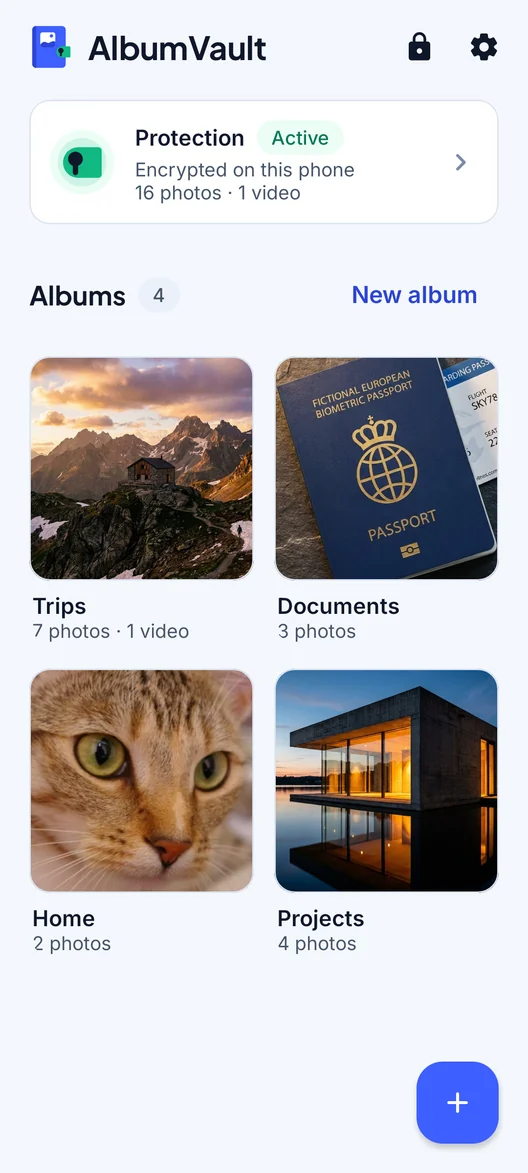
During a repair, a vault app with its own code, separate from your passcode, stays locked even after you have entered the passcode for a technician.
Before you erase a phone, check how your vault app moves to a new one. Vault apps that tie their key to the phone’s security hardware cannot simply be restored from a device backup, and some keep their files out of the phone’s own backup on purpose. Make sure you have the vault’s own backup and its recovery method before you erase. After an erase, the old phone cannot help you.
A vault does not replace the steps above. A full erase is still the right way to clear a phone you are selling.
Checklist
- Back up the phone before any repair, trade-in or sale.
- Never hand over your passcode. Enter it yourself if asked, and stay present.
- iOS 27: turn on Ready for Repair or Trade In. iOS 26 or earlier: turn off Find My.
- Before selling an iPhone: turn off Stolen Device Protection, sign out, then Erase All Content and Settings.
- Don’t delete photos one by one while signed in to iCloud.
- Before selling an Android phone: remove your Google Account, then factory reset.
- Confirm any vault app’s own backup and recovery method before you erase.
Questions
Will Apple ask for my passcode during a repair?
No. Apple says neither Apple nor Apple Authorized Service Providers will ask for your Apple Account password or device passcode. For some software support you may be asked to enter it yourself, and Apple says to stay present while the technician has your device.
Do I need to turn off Find My before a repair?
On iOS 26 or earlier, yes: Apple says it might not be able to service the device otherwise. On iOS 27 or later, turn on Ready for Repair or Trade In in the Find My app instead, which keeps Find My on during eligible repairs.
Will erasing my iPhone delete my iCloud photos?
No. Apple says your content won’t delete from iCloud when you erase your device. Deleting photos by hand while you are still signed in is different: Apple says that removes them from iCloud and all your connected devices.
What should I do before selling an Android phone?
Google says to remove your Google Account first, then do a factory data reset. Removing the account also turns off Factory Reset Protection, so the buyer can set the phone up.
Sources
12
- Apple Support: Get your iPhone or iPad ready for service
- Apple Support: Ready for Repair or Trade In
- Apple Support: What to do before you sell, give away or trade in your iPhone or iPad
- Apple Support: About Stolen Device Protection for iPhone
- Apple Support: Locked apps and Stolen Device Protection
- iPhone User Guide: Lock or hide an app
- Android Help: Factory reset your Android device
- Google Play Help: Remove your account before selling or giving away a device
- Android Help: Protect your device with Factory Reset Protection
- Google Photos Help: Locked Folder
- Android Help: Private space
- iPhone User Guide: Delete or hide photos and videos
Keep reading
Does Stolen Device Protection protect your photos?
Partly. Away from familiar places it stops a thief who knows your passcode from erasing the phone, but Apple does not list the Hidden album.
SituationSomeone knows your passcode. Now what?
On an iPhone, the passcode opens the Hidden album and often locked apps too. Change it, and keep private photos behind a separate code.
GuideAre iCloud Photos encrypted?
Yes, but by default Apple holds the keys. Advanced Data Protection makes Photos end-to-end encrypted, with a few exceptions.